For instructors only
These steps require SAP BTP admin access to the CodeJam subaccount. Participants do not need to follow these instructions.
Instructor Setup for CodeJam
Introduction
This document covers everything an instructor needs to prepare the SAP BTP environment for a CAP + SAP HANA Cloud CodeJam. All steps must be completed before the day of the event. You will need Global Account administrator access to the SAP BTP Global Account: Developer Advocates Free Tier.
Pre-Event Checklist
Use this checklist before each event to confirm everything is in place.
- [ ] Navigate to the SAP BTP subaccount
- [ ] Enable Cloud Foundry and create the
devspace (including adding co-instructors as Space Members) - [ ] Provision the SAP HANA Cloud instance
- [ ] Map the HANA Cloud instance to the CF org and space
- [ ] Set HANA Cloud allowed connections to "Allow All IP Addresses"
- [ ] Create participant users, assign the
CodeJamRole Collection, and add to the CFdevspace
Pre-Event Setup
The SAP BTP SubAccount
This is a shared, persistent subaccount used for all CAP CodeJams — do not create a new one.
- Log in the SAP BTP Global Account: Developer Advocates Free Tier.
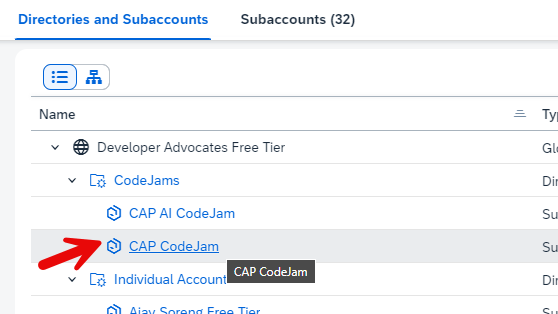
- Navigate to the Directories and SubAccounts section. There you will find a folder for CodeJams. Within that is the Subaccount CAP CodeJam. That's where we will work.
Enable Cloud Foundry and Create a dev Space
CF is required because participants deploy HDI container service instances into this space.
- Enable the Cloud Foundry Environment.
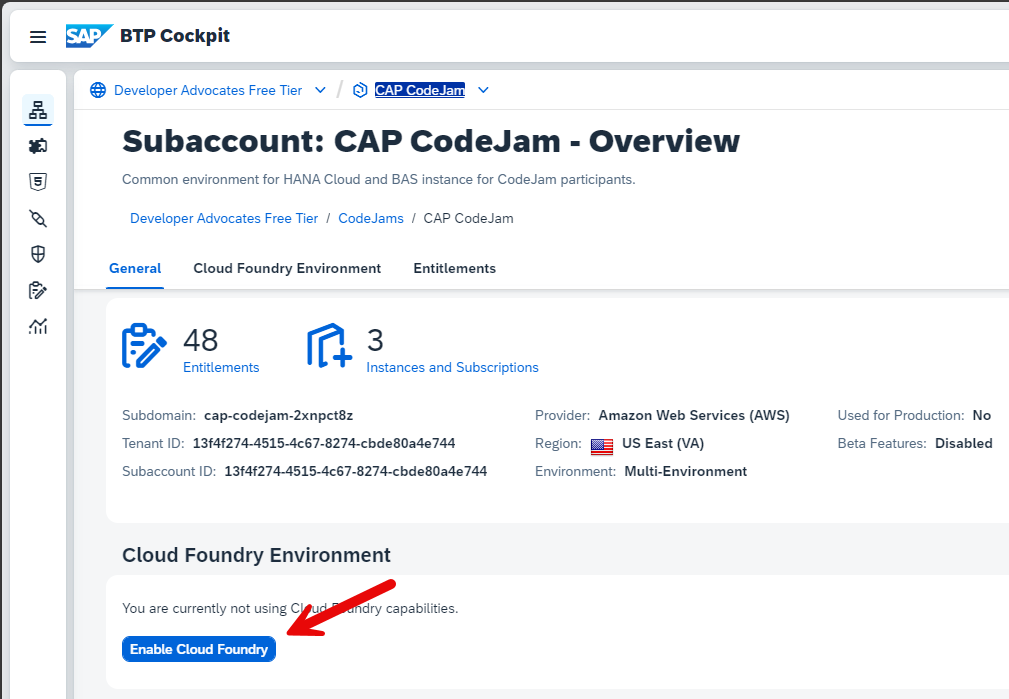
- Use the default Enablement dialog choices.
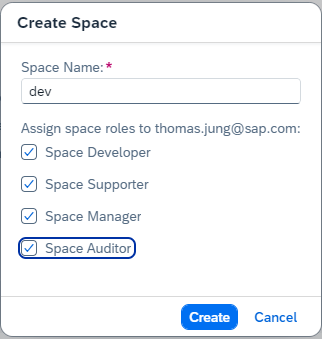
- Once the org is created, create a space named
dev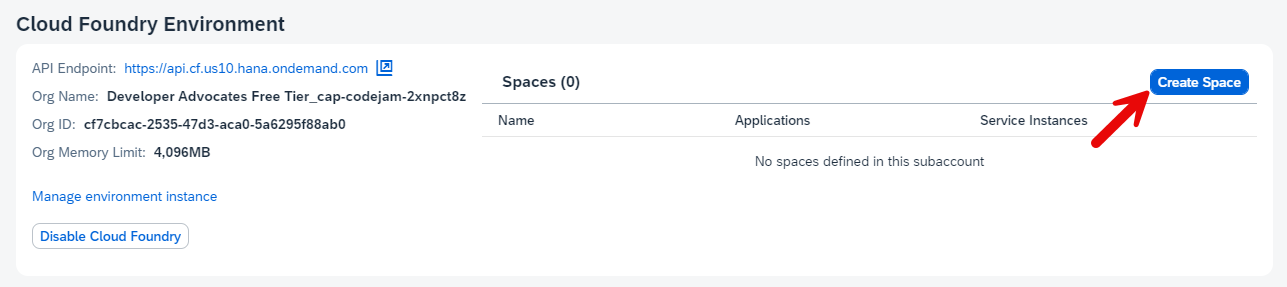
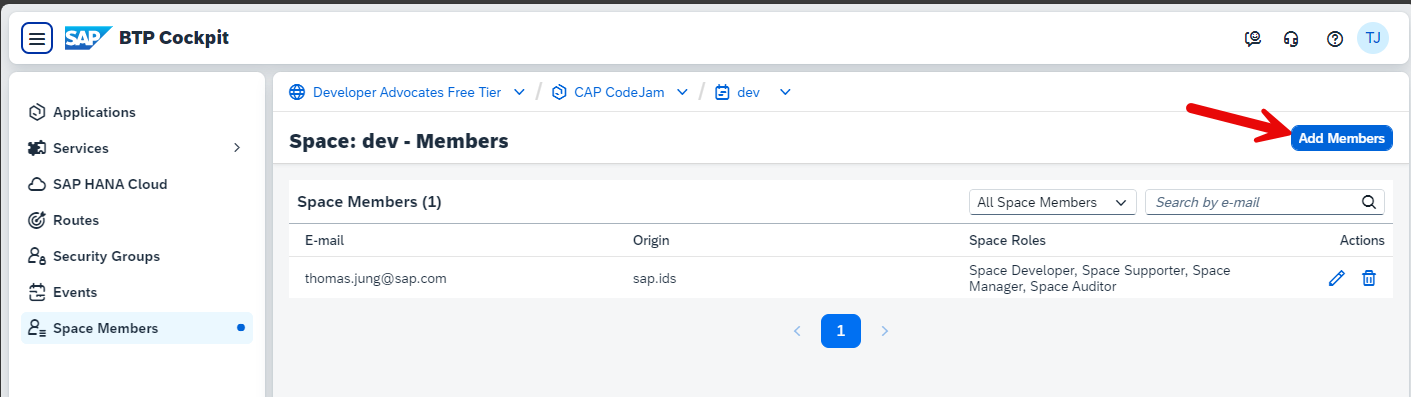
- Add the other instructors as Space Members with all roles.
Provisioning of SAP HANA Cloud
A single shared SAP HANA Cloud instance serves all participants during the event.
Source
These steps are from Deploy SAP HANA Cloud on SAP Tutorials.
Add SAP HANA Cloud to your account
- Complete the tutorial steps in Start Using SAP HANA Cloud Trial in SAP BTP Cockpit. Upon completing this tutorial you will have setup or used your SAP BTP account (Trial or Free Tier) and performed the necessary updating of entitlements, subscriptions, and roles for utilizing SAP HANA Cloud.
Create Database
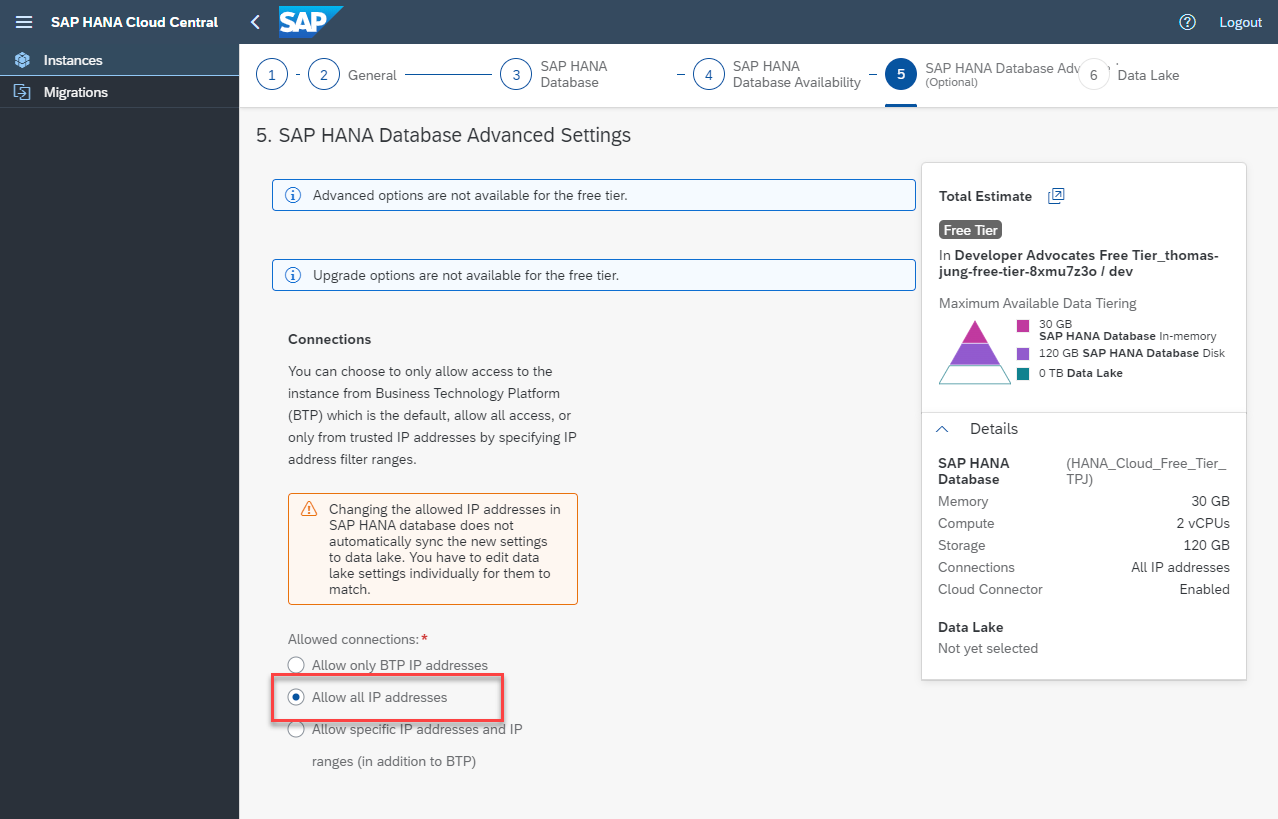
Complete the tutorial steps in Provision an Instance of SAP HANA Cloud, SAP HANA Database. This wizard used in this tutorial will walk you through the process of creating an SAP HANA Cloud instance. Just one note as you go through this guided tour: Make sure that in the "Advanced Settings" part of the setup, that you select "Allow all IP addresses" in the "Connections" setting. This setting will allow you to develop against your SAP HANA Cloud instance using a variety of external development tools, including the SAP Business Application Studio.
Once your system is running we need to update the configuration before you use it for development. Click on the three dots and then choose
ManageConfiguration.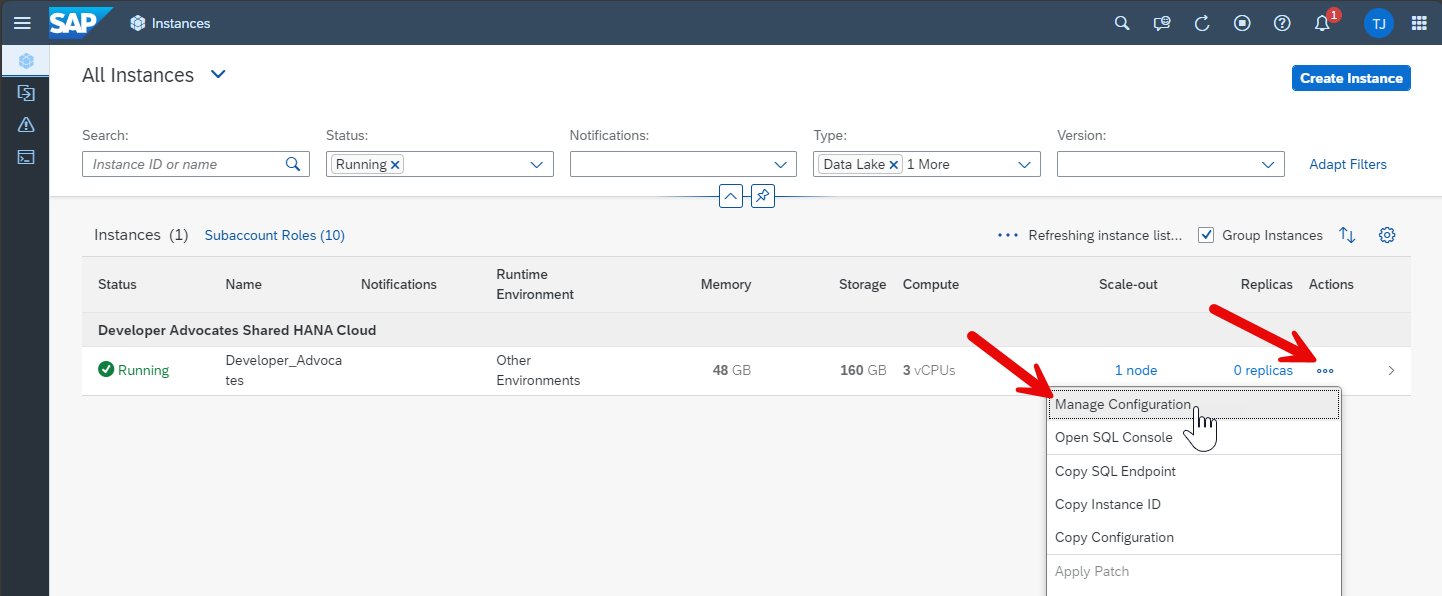
Go to the
Instance Mappingsection of the Configuration. The HANA Cloud instance lives at your BTP sub account level and isn't immediately available in either the Cloud Foundry nor Kyma runtimes. In order to use HANA for HDI (HANA Deployment Infrastructure) or CAP (Cloud Application Programming Model) based development, you need to map the instance to your runtime of choice. For this Tutorial we will map to the default Cloud Foundry runtime of your trial account.
In the Environment Instance ID of the Mapping supply the Organizational ID from your Cloud Foundry Environment (which can be found in the Subaccount Overview in the SAP BTP Cockpit).
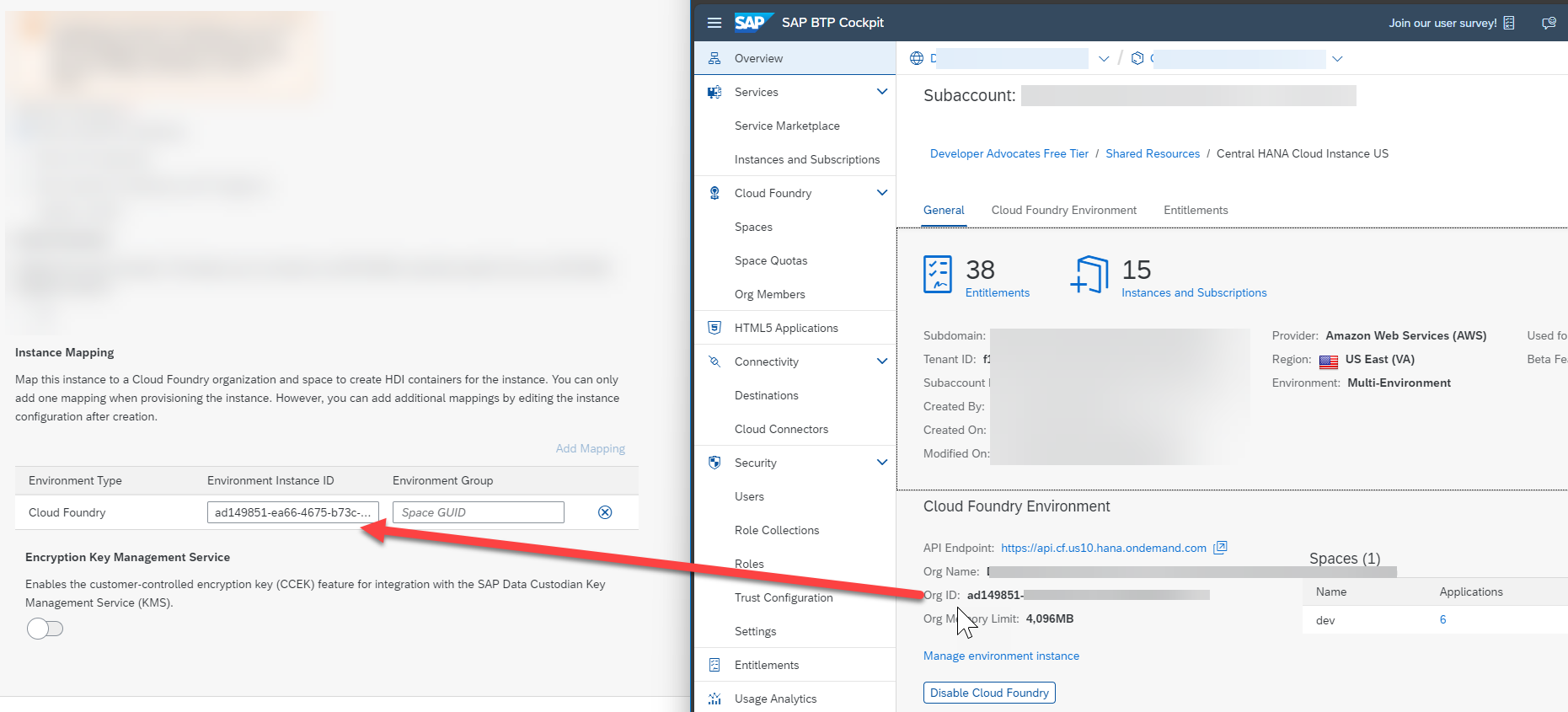
We do not need to map to an Environment Group (a Cloud Foundry space). If we leave this optional field empty, all spaces within the org will be automatically mapped.
Press
Review and Saveto complete your changes.You should now have a new SAP HANA Cloud instance created in the SAP BTP trial or free tier ready for development.
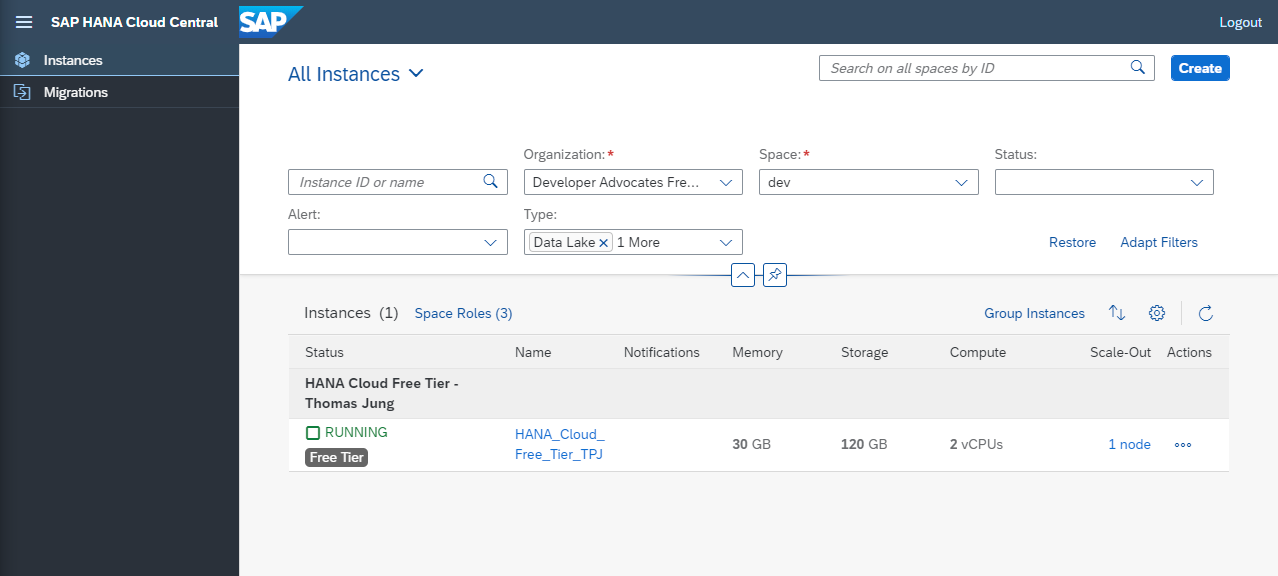
Finally it is important to take note that the SAP HANA Cloud instance in both the free tier and free trial shuts down at the end of each day automatically to save costs from unused systems. Therefore you must return to this SAP HANA Cloud administration screen each day you want to use SAP HANA Cloud and choose to start the system from the Action menu. If you forget to restart the instance, you will receive HANA connection errors whenever you try to interact with it in later steps.
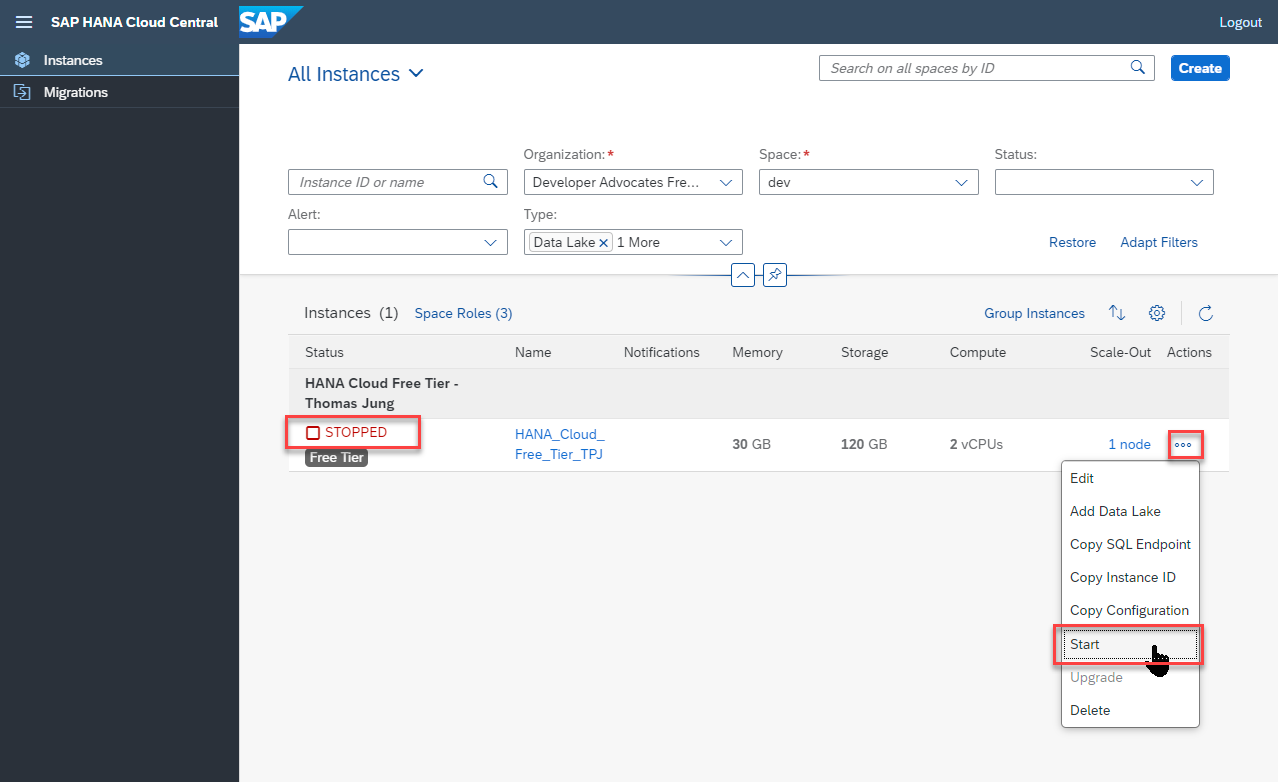
Once the SAP HANA Cloud instance is created, take note of the admin user (DBADMIN) and password you supplied to connect to the database. This will be useful in subsequent tutorials.
⚠️ Important: The tutorial covers two steps that are easy to miss but will prevent participants from connecting to the database if skipped:
- CF org/space mapping — map the HANA Cloud instance to the Cloud Foundry org and space.
- Allow All IP Addresses — set the instance's allowed connections to "Allow All IP Addresses"; without this, dev tools such as SAP Business Application Studio cannot connect.
Adding Users
Each participant needs both a BTP subaccount user and a Cloud Foundry space membership to complete all exercises.
Note: The
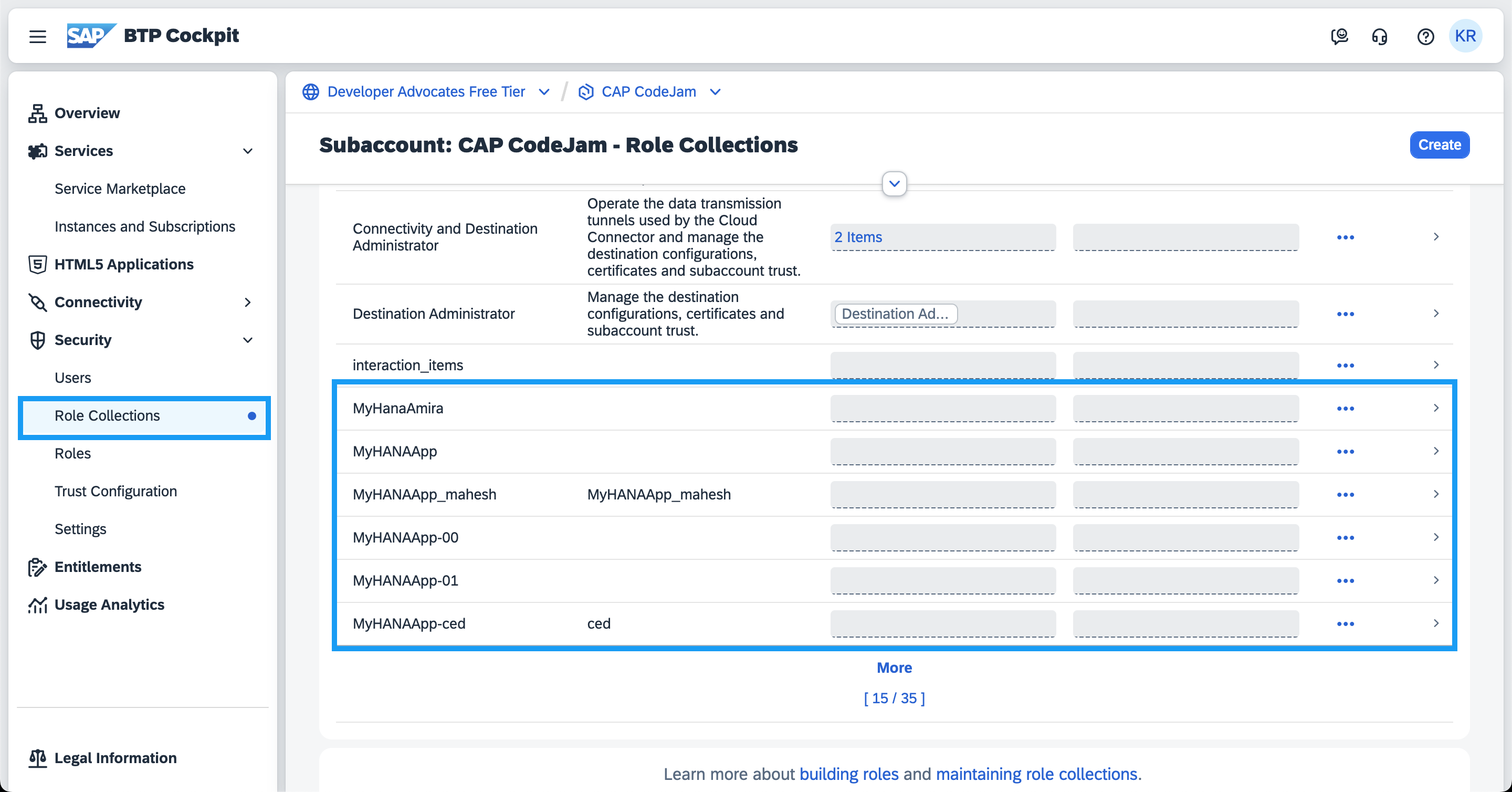
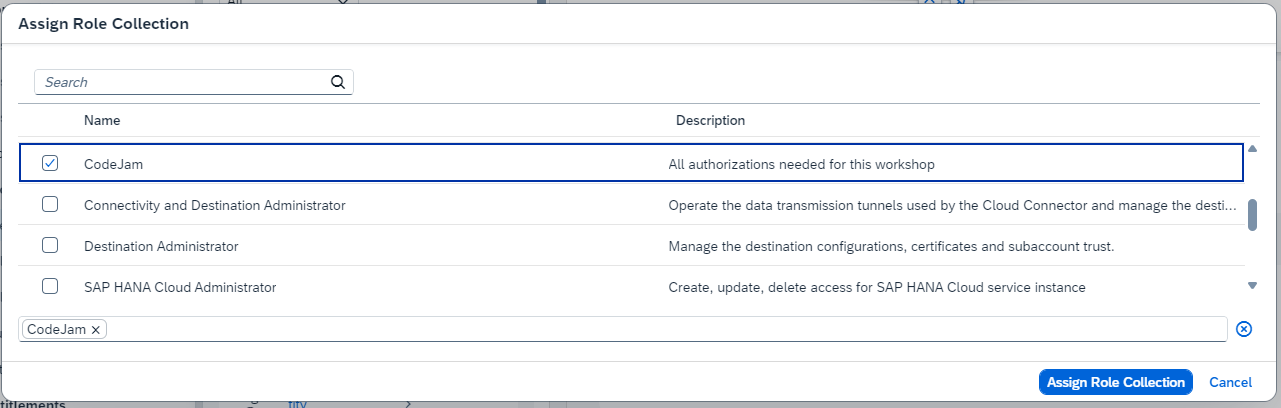
CodeJamRole Collection already exists in this subaccount (pre-built with all 41 roles covering SAP Business Application Studio, SAP HANA Cloud, Destinations, and more). Do not create a new one — simply assign the existing one to each participant.
Action 1: Create the subaccount user and assign the Role Collection
- Navigate to the "Security" section in your SubAccount.
Security -> Users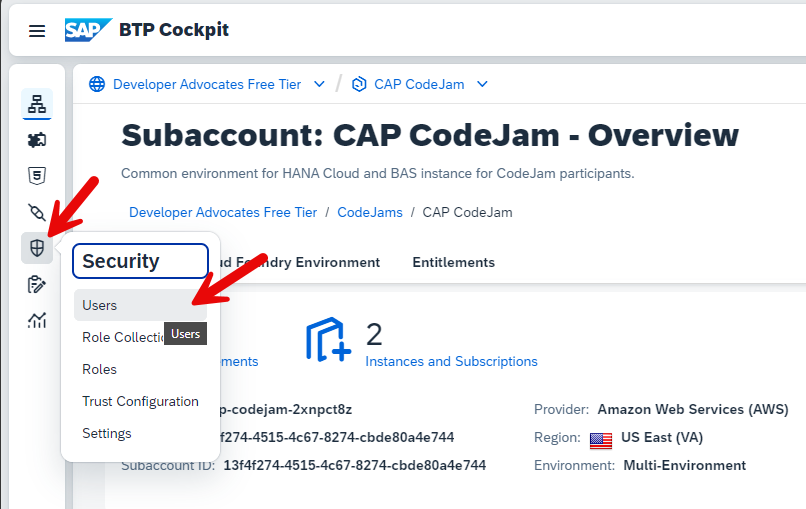
- Create User

- Enter the email addresses of the participants and use the
Default identity provider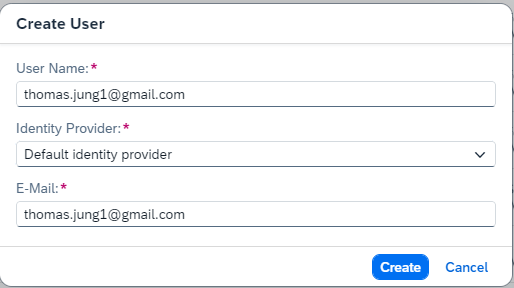
- Assign them to the
CodeJamRole Collection.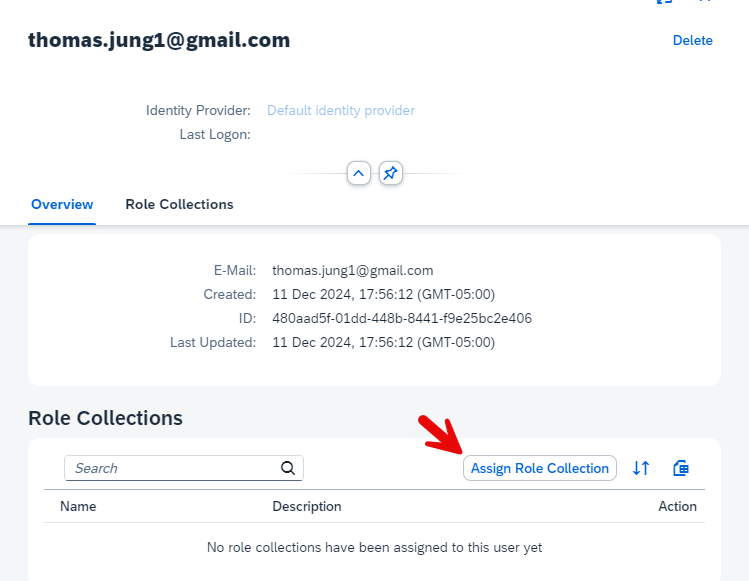
Action 2: Add users to the Cloud Foundry space
- Assign the users to the Cloud Foundry
devSpace
After the Event
Run these steps after every event to avoid ongoing costs and reset the subaccount for next time.
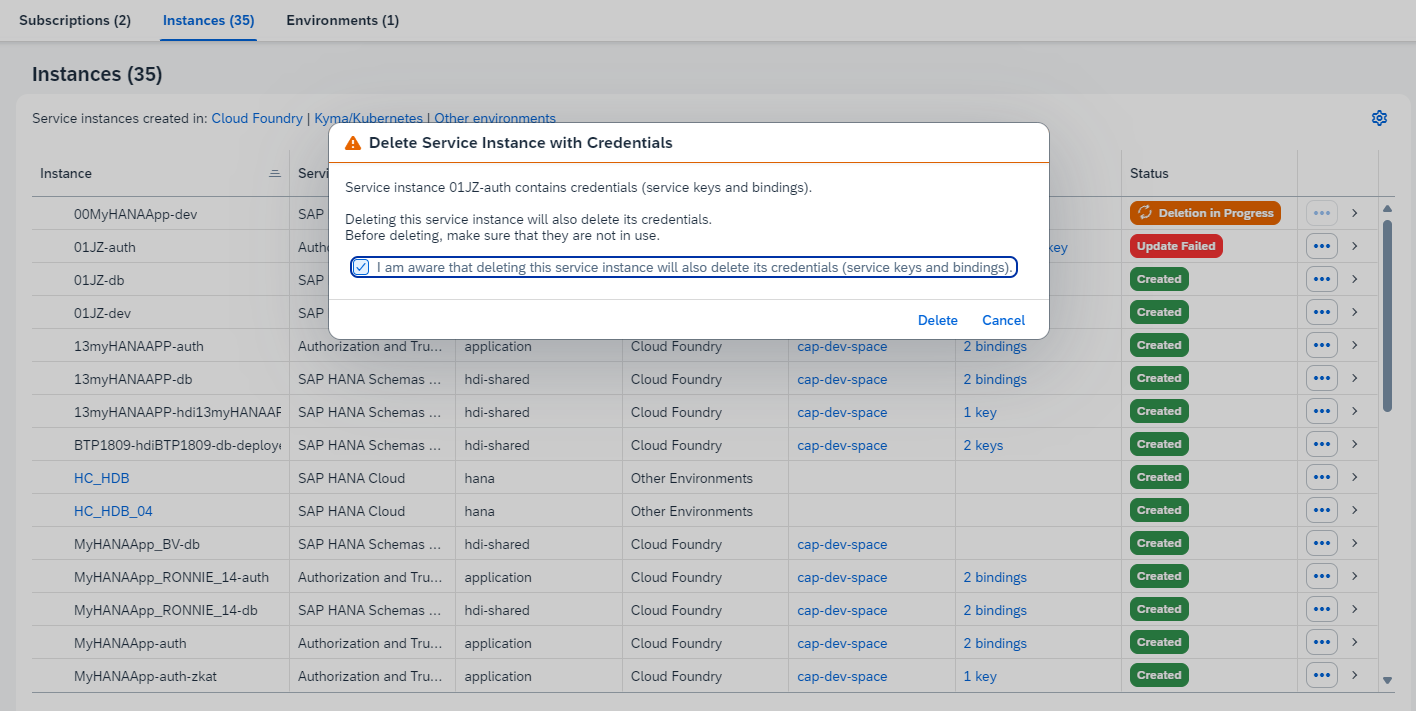
Delete all the HDI container instances from the BTP Cockpit SubAccount/Instances views.
Disable the Cloud Foundry Environment. This will remove all user access at the CF level and clean up remaining resources.
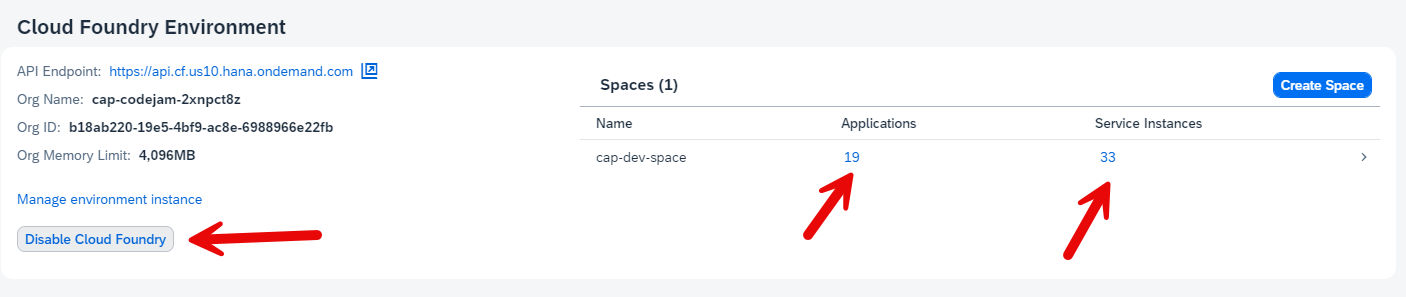
Delete the HANA Cloud Instance to save money.
- From the Subscriptions click on
SAP HANA Cloud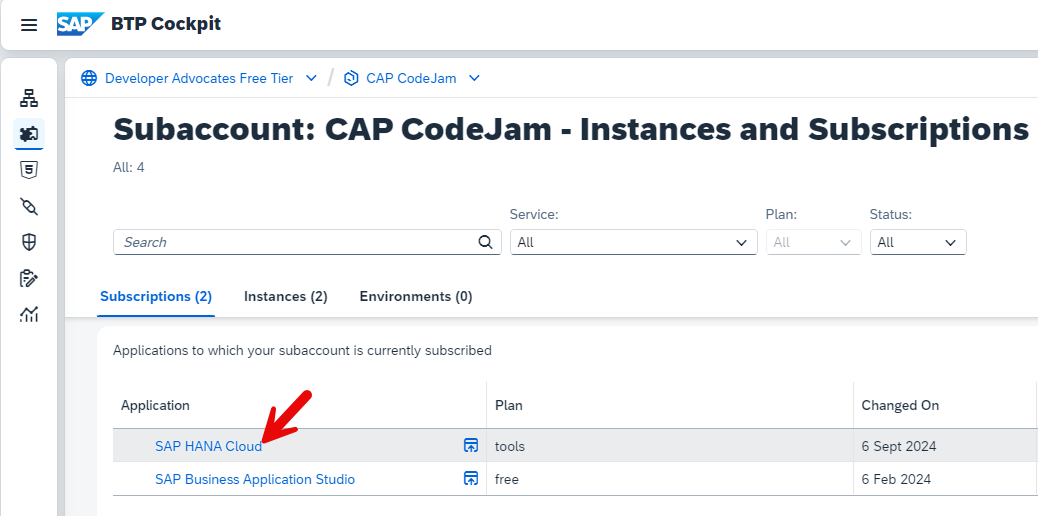
- Then
Actions -> Delete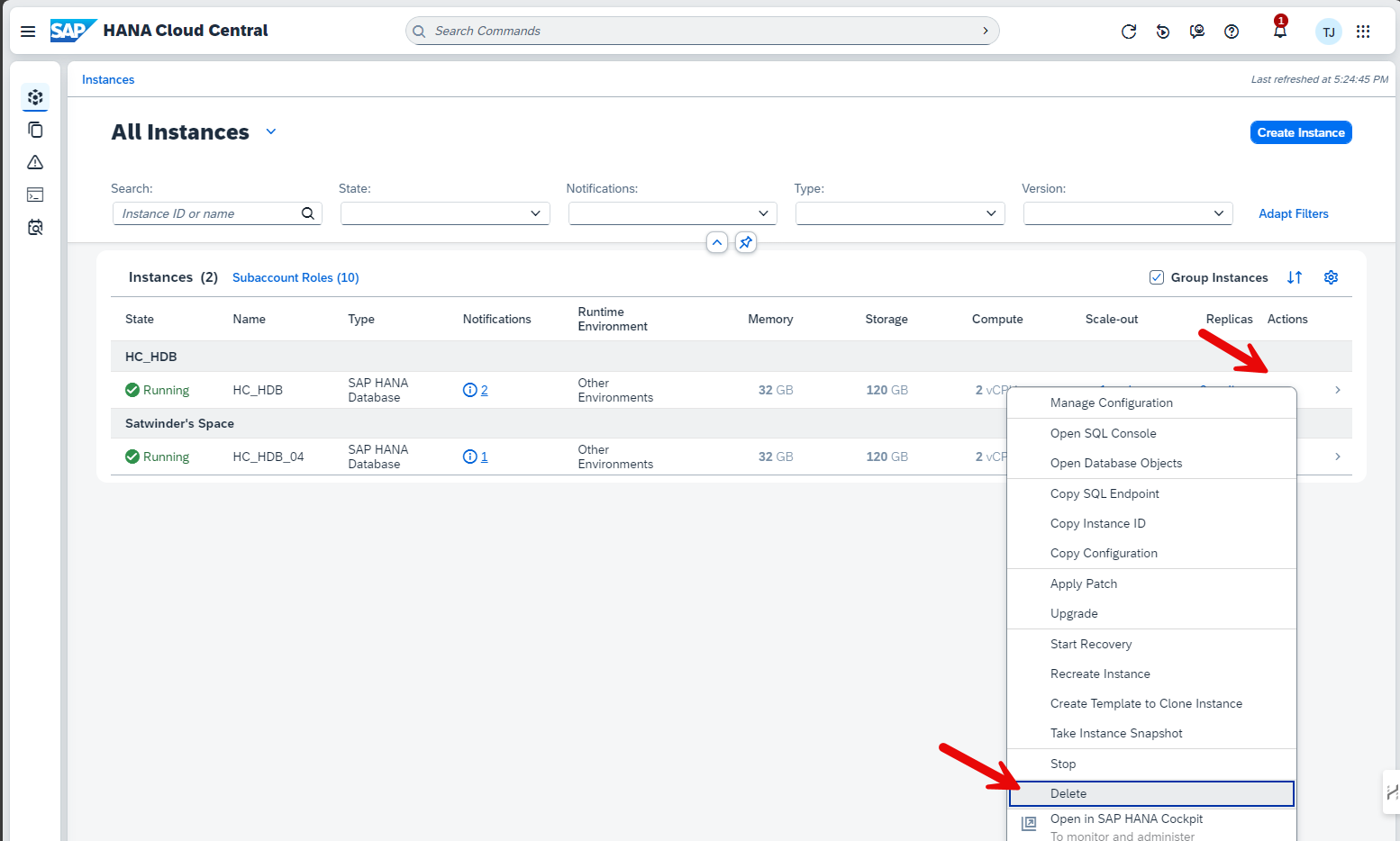
- From the Subscriptions click on
Remove Users
Security -> Users- Manually delete all workshop users
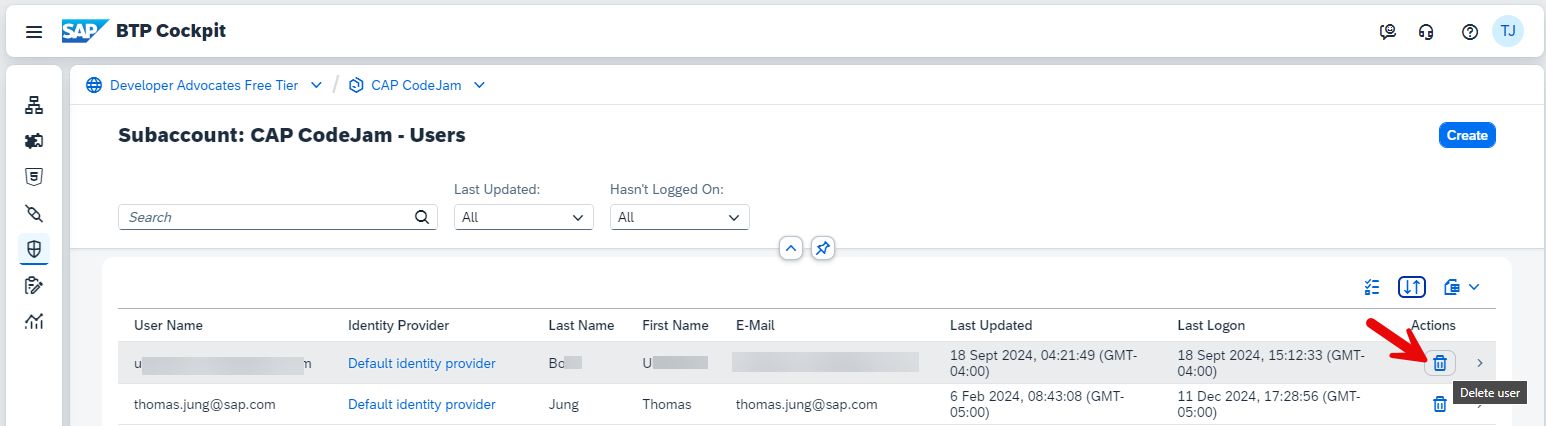
Remove Role Collections created by participants during the event
Security -> Role Collections- Delete any Role Collections that participants created during the event. Do not delete the
CodeJamRole Collection — it is pre-existing and reused across events.