
Before you start
Complete the Prerequisites to ensure your SAP BTP account and development environment are ready.
Exercise 1 - Set Up SAP HANA Cloud and SAP Business Application Studio
CodeJam participants: For this CodeJam it is no longer necessary to provision your own SAP HANA Cloud instance. Your instructor will provide you with access to an SAP BTP subaccount that already contains a running SAP HANA Cloud instance. You will only have temporary access to this account during the event. If you wish to continue learning independently after the CodeJam, this exercise contains the steps to provision your own SAP HANA Cloud instance on your own SAP BTP account.
If you are attending the CodeJam, skip ahead to 👉 Exercise 2 - Create an SAP Cloud Application Programming Model Project for SAP HANA Cloud
Introduction
Before we can start building our CAP application, we need two things in place:
- An SAP HANA Cloud database instance — this is the database that will store our application data and host our HDI (HANA Deployment Infrastructure) containers.
- An SAP Business Application Studio workspace — this is the cloud-based IDE we will use to write, build, and deploy our CAP application.
SAP HANA Cloud is provisioned in a "multi-environment" context using the SAP HANA Cloud Administration Tools. This means the HANA instance itself is not tied to a specific runtime environment (like Cloud Foundry), giving you flexibility to connect from multiple environments. See the "Further Study" section below for more on this.
Exercise 1.1 Deploy SAP HANA Cloud
We will use the SAP BTP Cockpit to provision a free SAP HANA Cloud instance. This is a one-time activity per account.
Source
These steps are from Deploy SAP HANA Cloud on SAP Tutorials.
Add SAP HANA Cloud to your account
- Complete the tutorial steps in Start Using SAP HANA Cloud Trial in SAP BTP Cockpit. Upon completing this tutorial you will have setup or used your SAP BTP account (Trial or Free Tier) and performed the necessary updating of entitlements, subscriptions, and roles for utilizing SAP HANA Cloud.
Create Database
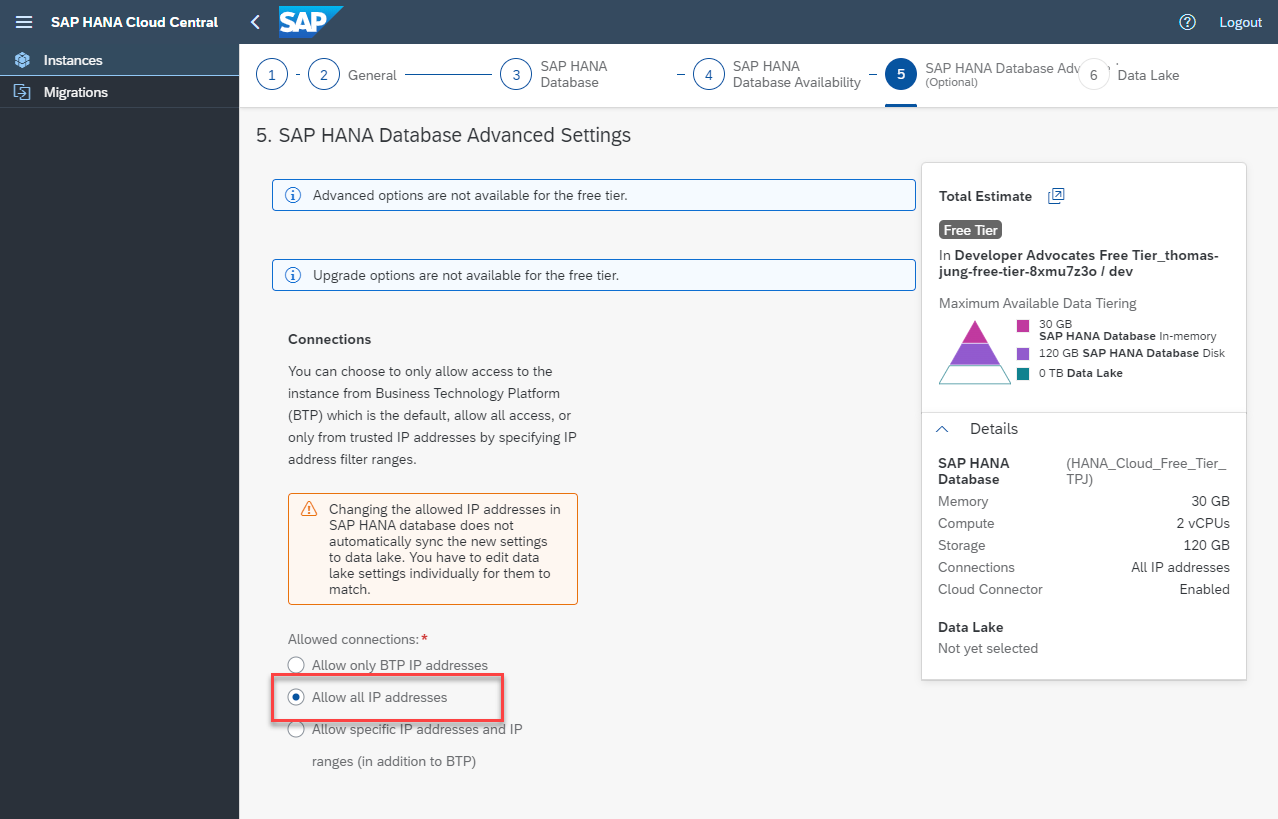
Complete the tutorial steps in Provision an Instance of SAP HANA Cloud, SAP HANA Database. This wizard used in this tutorial will walk you through the process of creating an SAP HANA Cloud instance. Just one note as you go through this guided tour: Make sure that in the "Advanced Settings" part of the setup, that you select "Allow all IP addresses" in the "Connections" setting. This setting will allow you to develop against your SAP HANA Cloud instance using a variety of external development tools, including the SAP Business Application Studio.
Once your system is running we need to update the configuration before you use it for development. Click on the three dots and then choose
ManageConfiguration.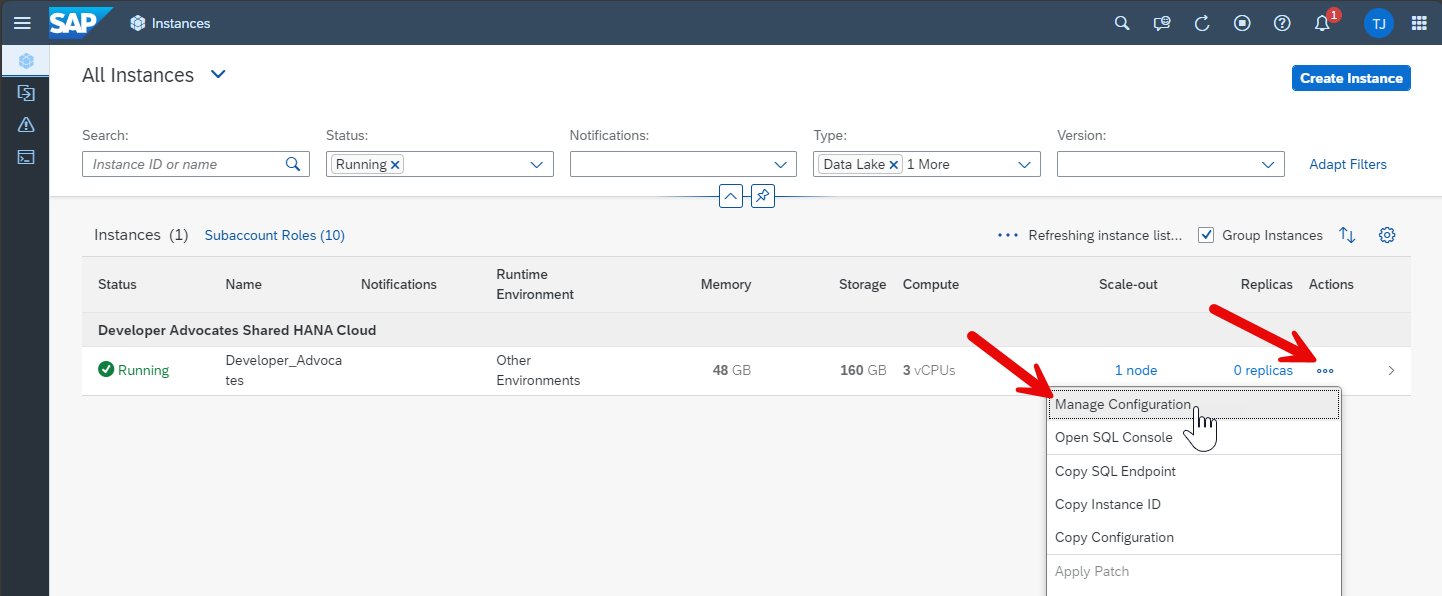
Go to the
Instance Mappingsection of the Configuration. The HANA Cloud instance lives at your BTP sub account level and isn't immediately available in either the Cloud Foundry nor Kyma runtimes. In order to use HANA for HDI (HANA Deployment Infrastructure) or CAP (Cloud Application Programming Model) based development, you need to map the instance to your runtime of choice. For this Tutorial we will map to the default Cloud Foundry runtime of your trial account.
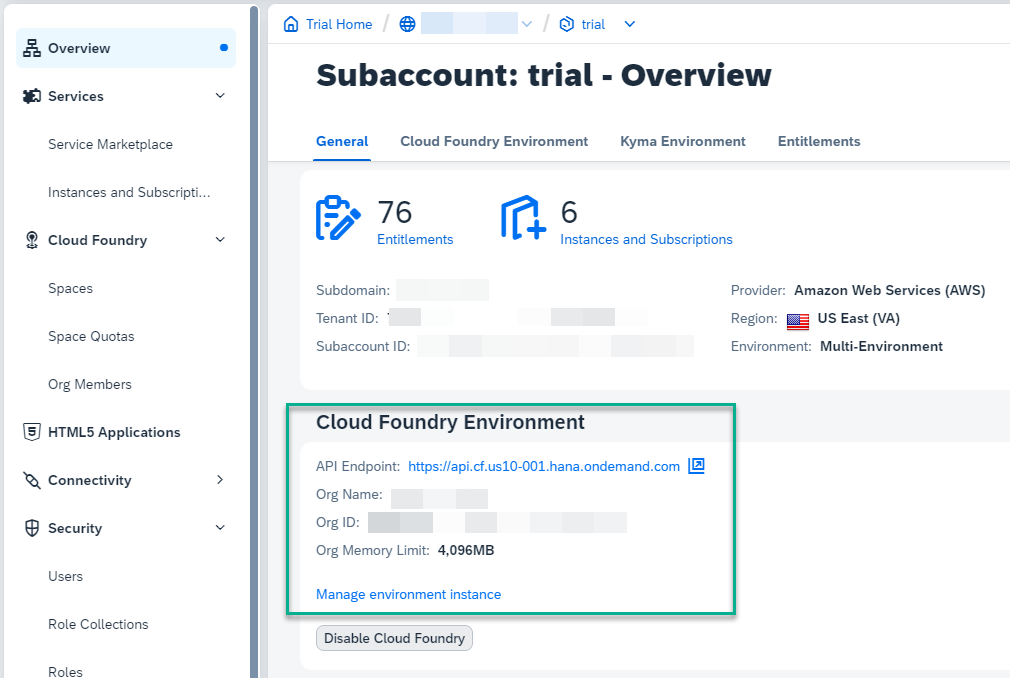
In the Environment Instance ID of the Mapping supply the Organizational ID from your Cloud Foundry Environment (which can be found in the Subaccount Overview in the SAP BTP Cockpit).
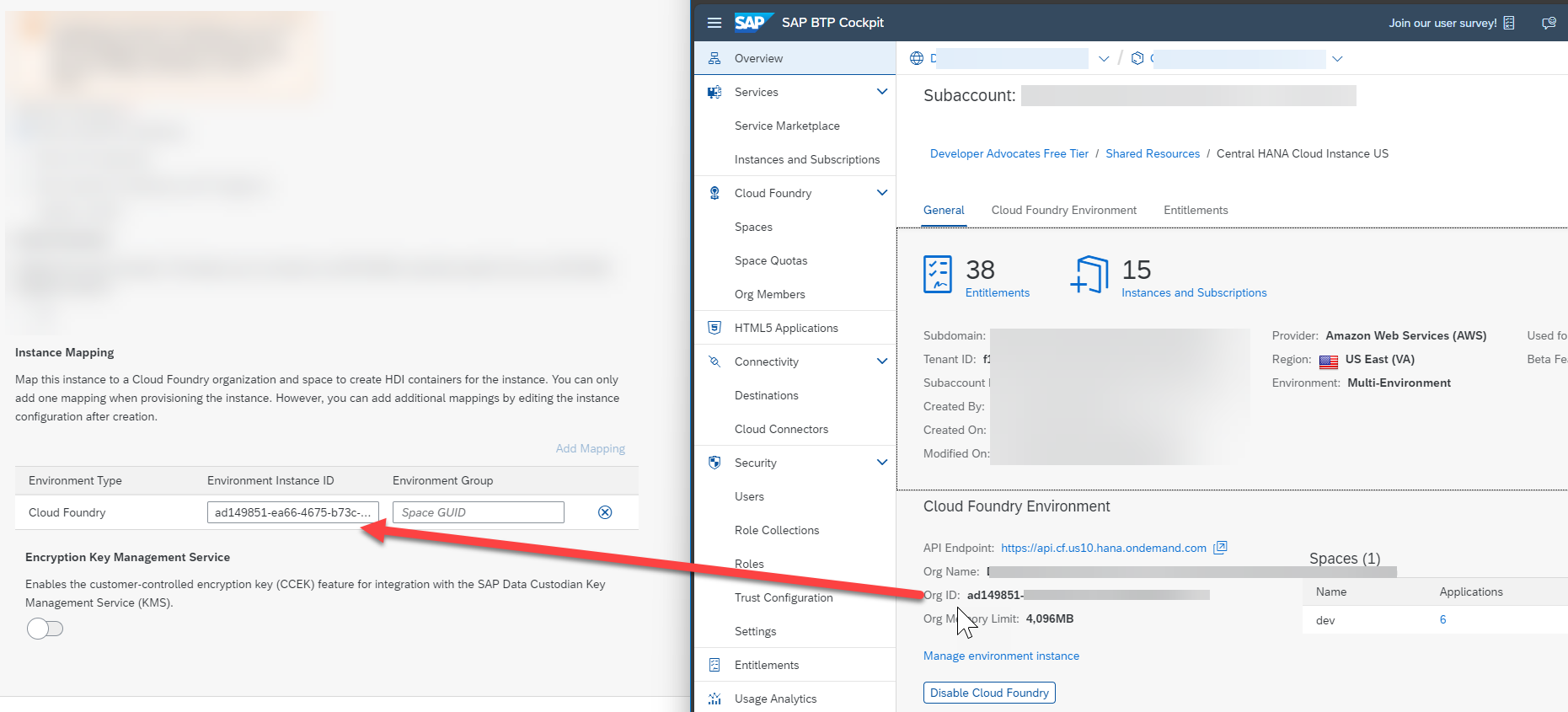
We do not need to map to an Environment Group (a Cloud Foundry space). If we leave this optional field empty, all spaces within the org will be automatically mapped.
Press
Review and Saveto complete your changes.You should now have a new SAP HANA Cloud instance created in the SAP BTP trial or free tier ready for development.
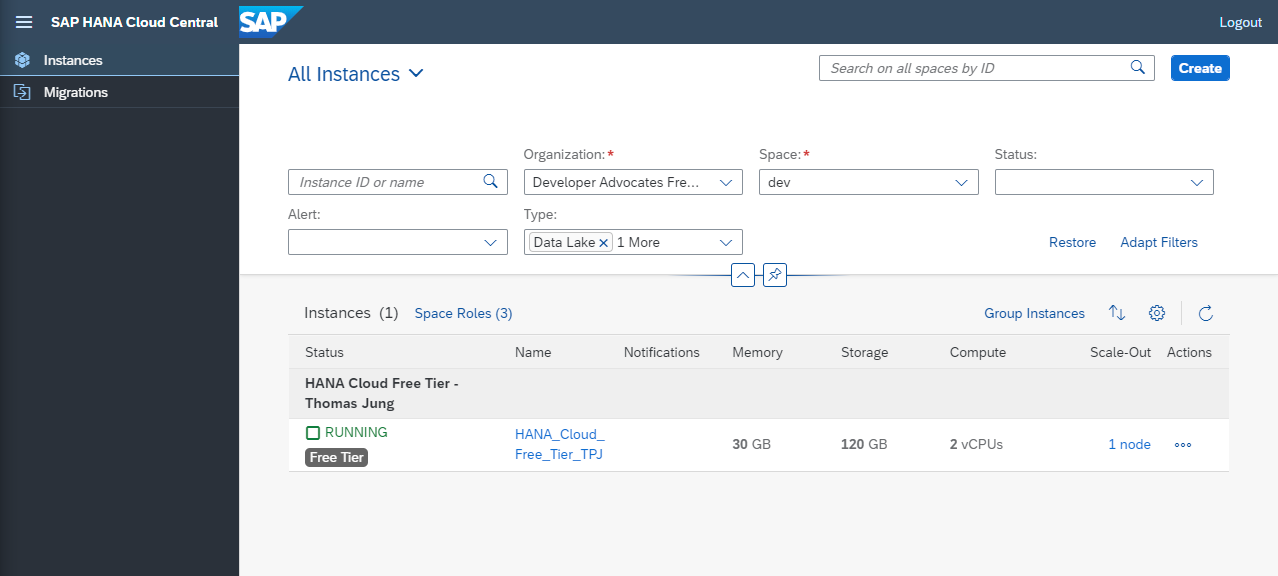
Finally it is important to take note that the SAP HANA Cloud instance in both the free tier and free trial shuts down at the end of each day automatically to save costs from unused systems. Therefore you must return to this SAP HANA Cloud administration screen each day you want to use SAP HANA Cloud and choose to start the system from the Action menu. If you forget to restart the instance, you will receive HANA connection errors whenever you try to interact with it in later steps.
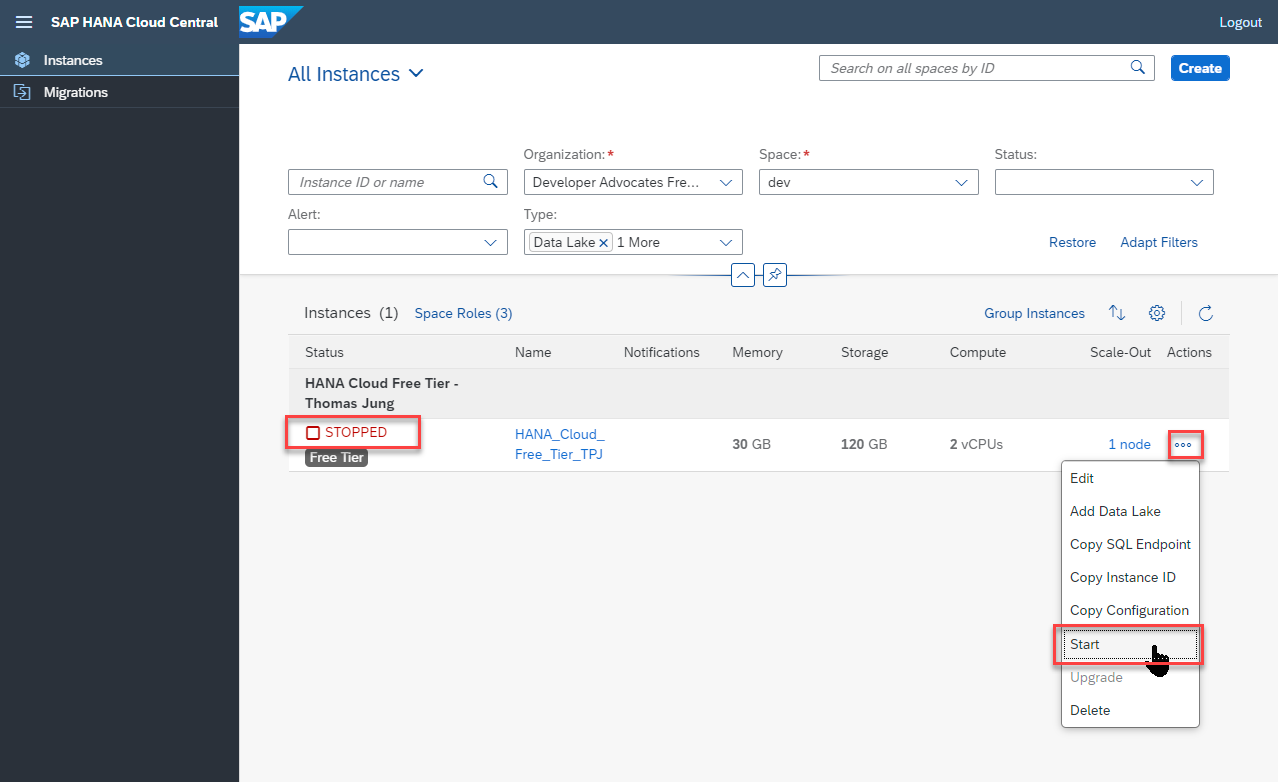
Once the SAP HANA Cloud instance is created, take note of the admin user (DBADMIN) and password you supplied to connect to the database. This will be useful in subsequent tutorials.
Once complete, you have a fully functional SAP HANA Cloud database with the complete set of HANA capabilities available to you — including in-memory processing, advanced analytics, JSON document store, and graph engine.
Important — daily restart required. SAP HANA Cloud trial instances are stopped automatically each night to conserve resources. You must manually restart your instance each day before using it. Forgetting to restart the instance is the most common cause of connection errors in this CodeJam. The restart procedure is covered in the tutorial above.
Exercise 1.2 Set Up SAP Business Application Studio
SAP Business Application Studio (BAS) is a cloud-based development environment available on SAP BTP. It comes pre-configured with the tools, extensions, and runtimes you need for CAP and HANA development, so you don't need to install anything locally.
The setup steps differ slightly depending on whether you are using the SAP BTP free trial or free tier.
Source
These steps are from Set Up SAP Business Application Studio for Development on SAP Tutorials.
Log into SAP BTP Trial
Go to https://account.hanatrial.ondemand.com and log in to your SAP BTP cockpit.
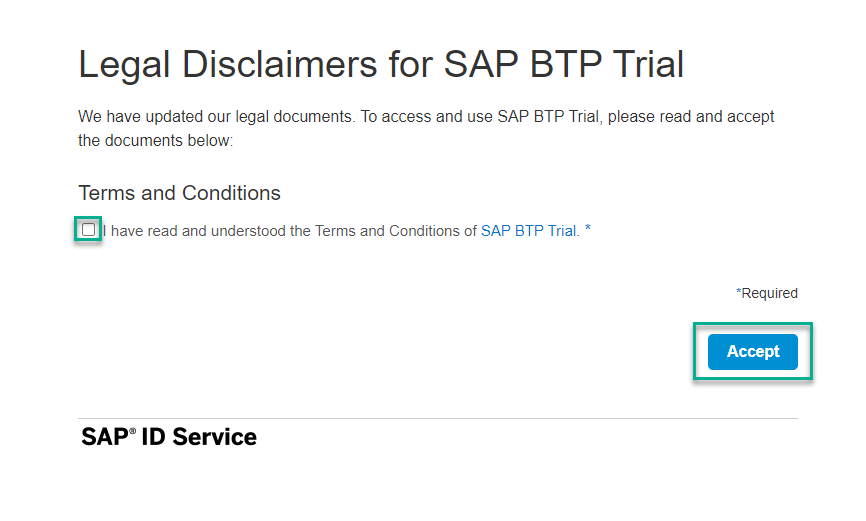
You might be asked to accept the legal terms. Check the box and click Accept.
Check Cloud Foundry Enablement
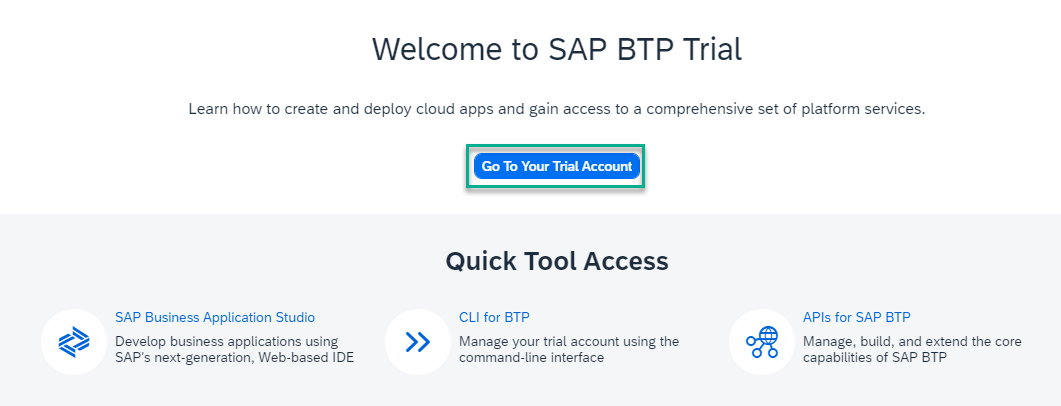
Click Go To Your Trial Account to open the list of available trial subaccounts.
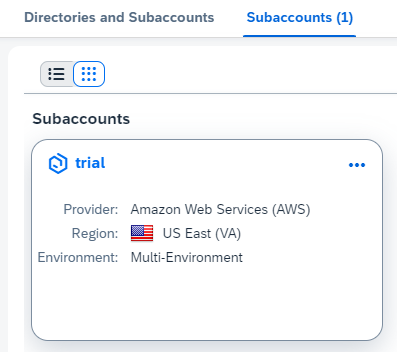
Select the subaccount you want to use for this tutorial.
In the overview page, check that Cloud Foundry is enabled.
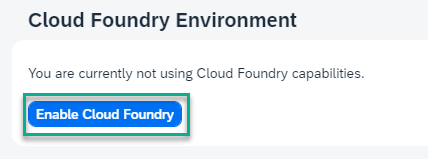
If Cloud Foundry is not enabled, press the Enable Cloud Foundry button.
Check for Required Entitlements
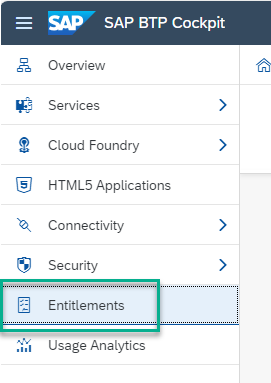
Go to Entitlements.
Make sure the entitlements listed below are added. If you can’t find the entitlements make sure to add them as described here: Setting Up Your Trial Account | SAP Help Portal.
Authorization and Trust Management Service – add all 4 plans.

SAP Build Work Zone, standard edition – add the following two plans:

SAP Business Application Studio - add the following plan:

Launch SAP Business Application Studio
Go back to Trial Home.

Click SAP Business Application Studio to launch SAP Business Application Studio.
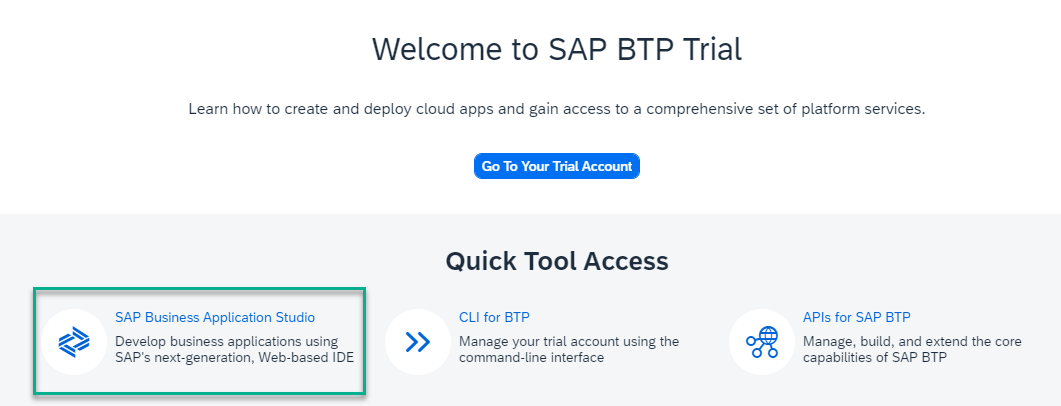
When you create a new trial account, you are subscribed to SAP Business Application Studio by default.
If you receive an error message, we recommend that you recreate your account: delete the account and then Get a Free Account on SAP BTP Trial.
Important: If you receive an error message but your account was not created recently, you need to add a subscription to SAP Business Application Studio. Answer the validation question of the current step, go to the next step in this tutorial, and proceed from there.
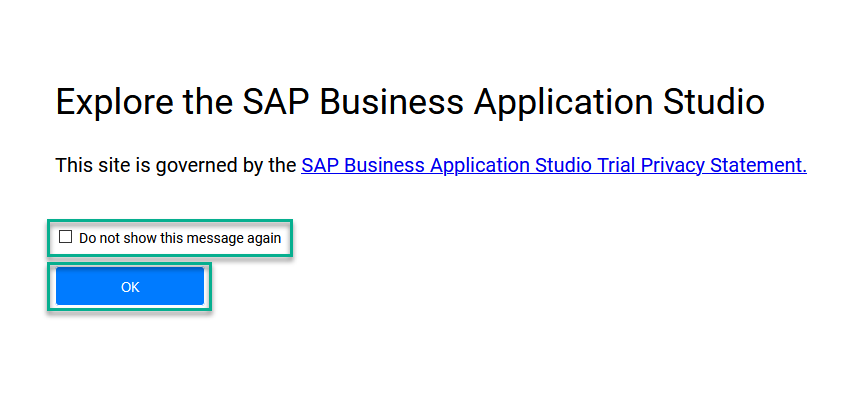
You might be asked to accept the legal terms. Check the box and click OK.
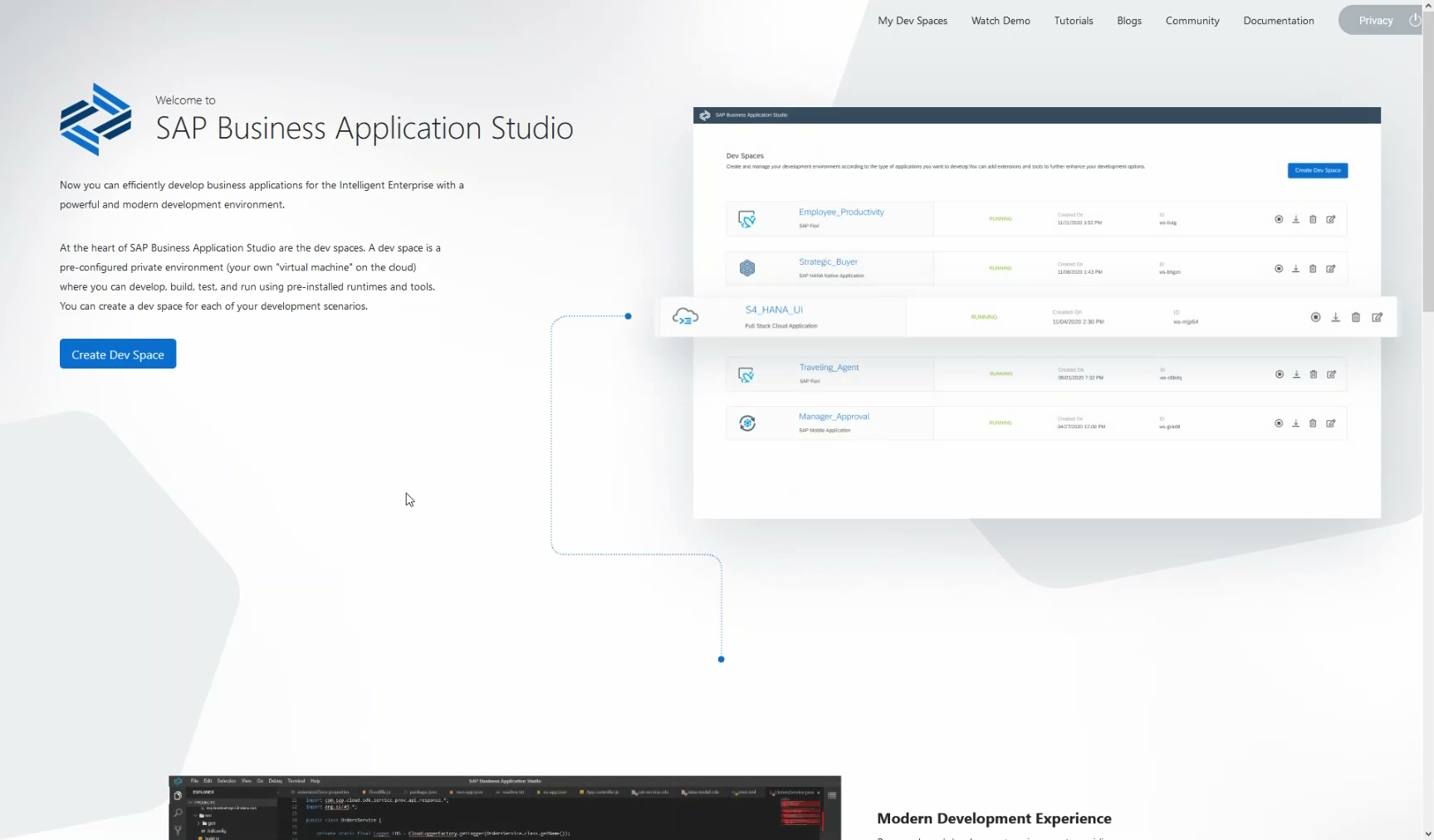
A new tab opens. If you have not created a dev space, the welcome page for SAP Business Application Studio loads.
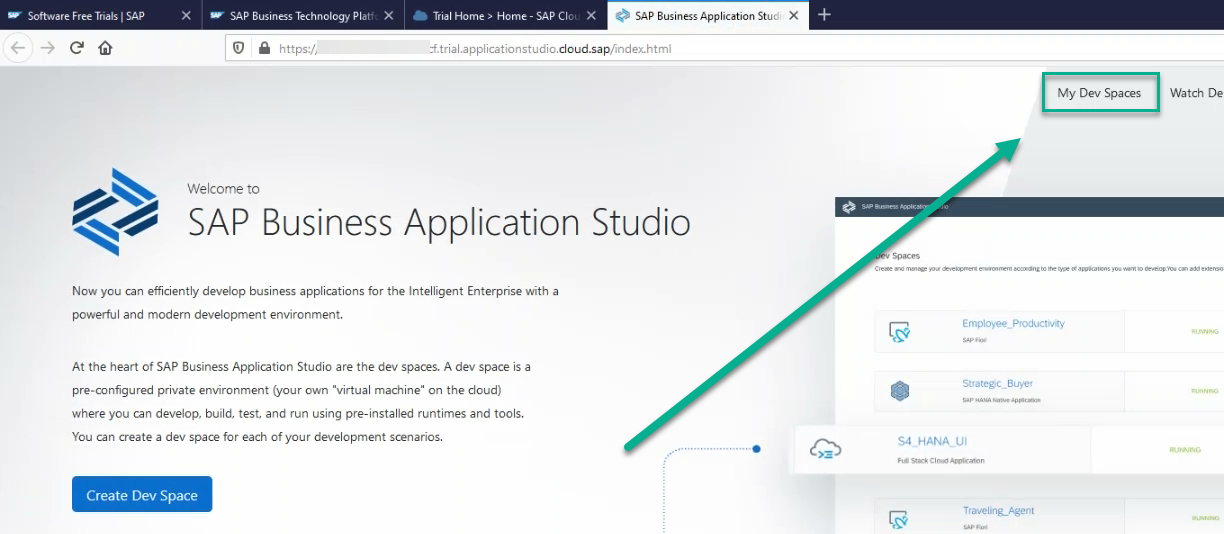
If this is not the first dev space, the dev space manager for SAP Business Application Studio opens.

Click My Dev Spaces to open the SAP Business Application Studio dev space manager page.
Dev space manager for SAP Business Application Studio
Create a bookmark to this page to make it easy for you to get back to SAP Business Application Studio later.
>If you reached this point in the tutorial, you have successfully on-boarded SAP Business Application Studio. Answer the validation question of the current tutorial step and mark the rest of the steps as "Completed".
Add the SAP Business Application Studio Subscription to the Subaccount
Depending on when you created the SAP BTP Trial account, this subscription might already be added to the subaccount. If you are not subscribed to SAP Business Application Studio, follow this step to add the SAP Business Application Studio subscription to a subaccount.
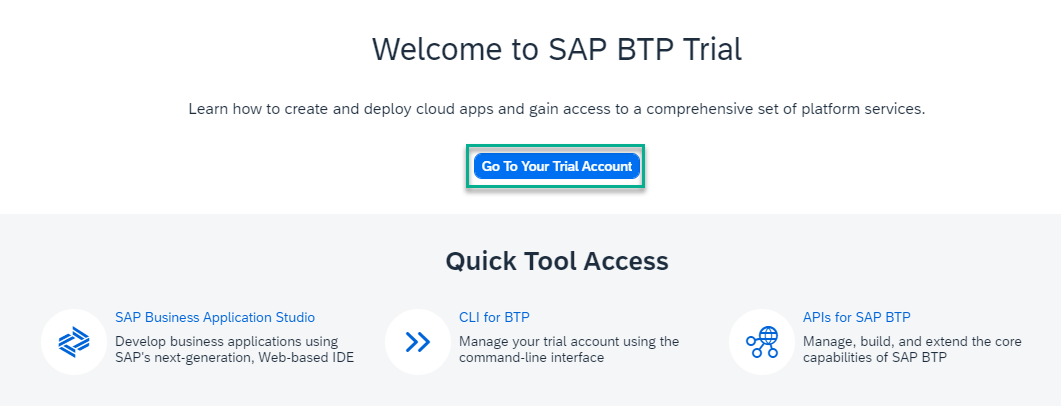
Click Enter Your Trial Account to access the Cloud Foundry environment.
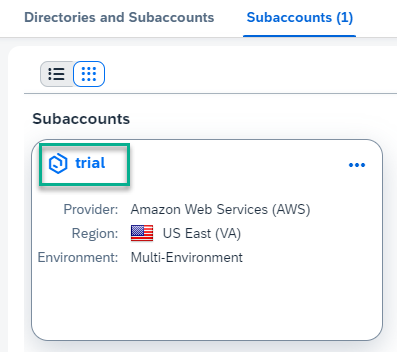
Select the tile of the subaccount in which you want to enable the SAP Business Application Studio subscription.
For the trial environment, SAP Business Application Studio is only available on:
- Amazon Web Services (AWS) - US East (VA) region (US10 trial).
- Microsoft Azure - Singapore region (AP21 trial).
An updated list of regions is available in SAP Discovery Center > Service Plan > Trial.
When creating an SAP BTP Trial account a trial subaccount is generated.
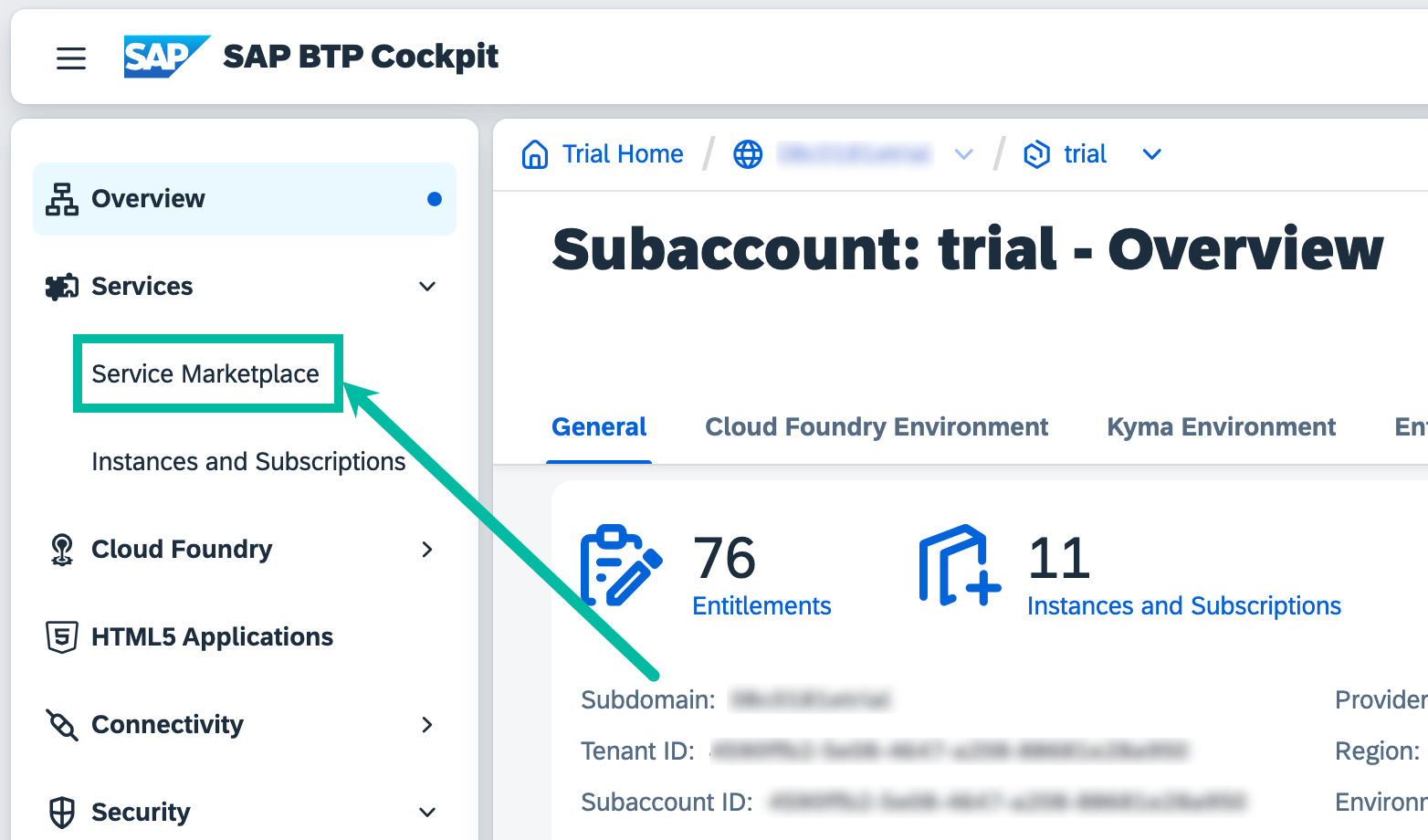
From the navigation area, click Service Marketplace.
In the Service Marketplace page, search for
studio.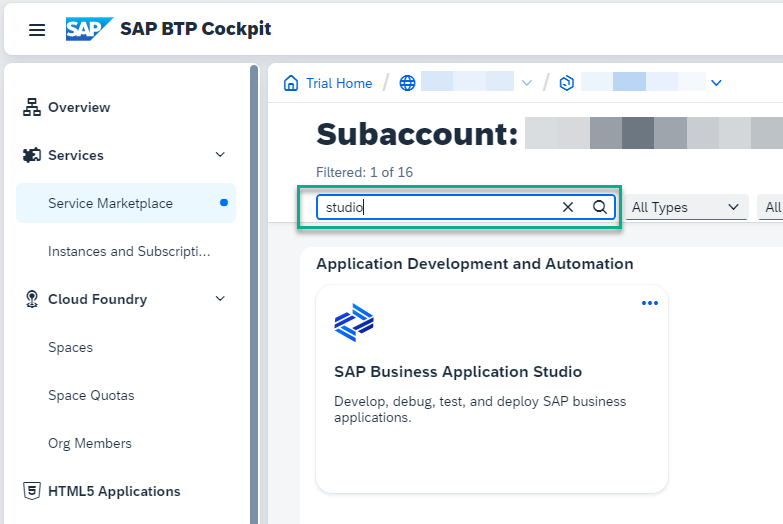
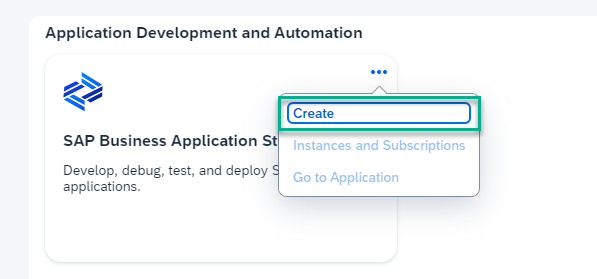
Click the Actions icon (three dots) to open the list of available actions.
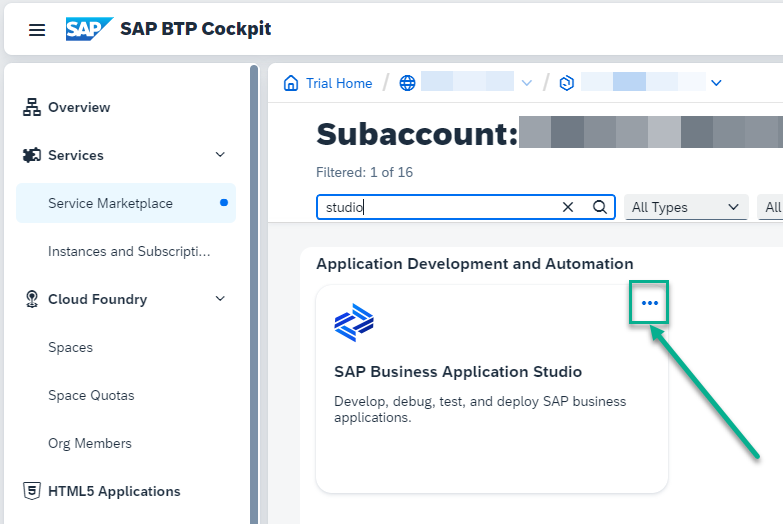
Click Create to launch the wizard for subscribing to SAP Business Application Studio.
In the wizard verify that
SAP Business Application Studiois selected in the Service field andtrialis selected in the Plan field.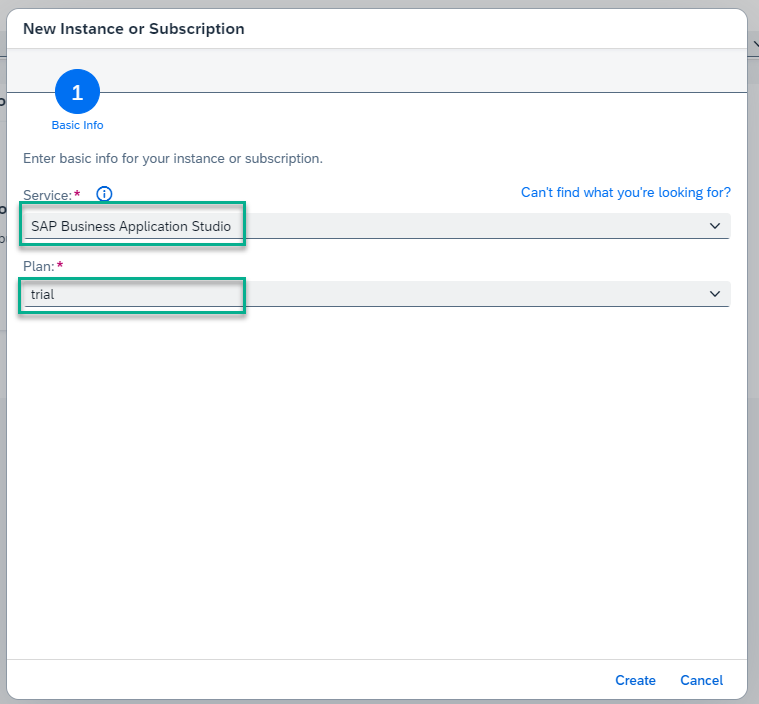
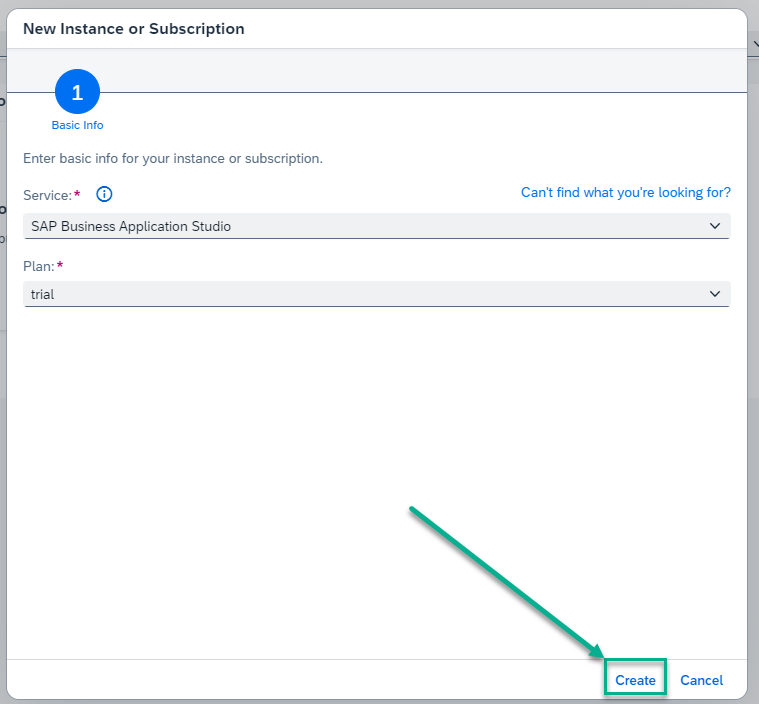
Click Create to subscribe to SAP Business Application Studio.
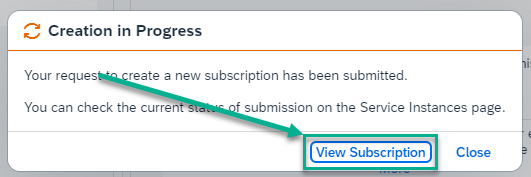
A Creation in Progress popup appears. Click View Subscription to view the SAP Business Application Studio subscription in the Instances and Subscriptions page.
Launch SAP Business Application Studio
Click Go to Application.
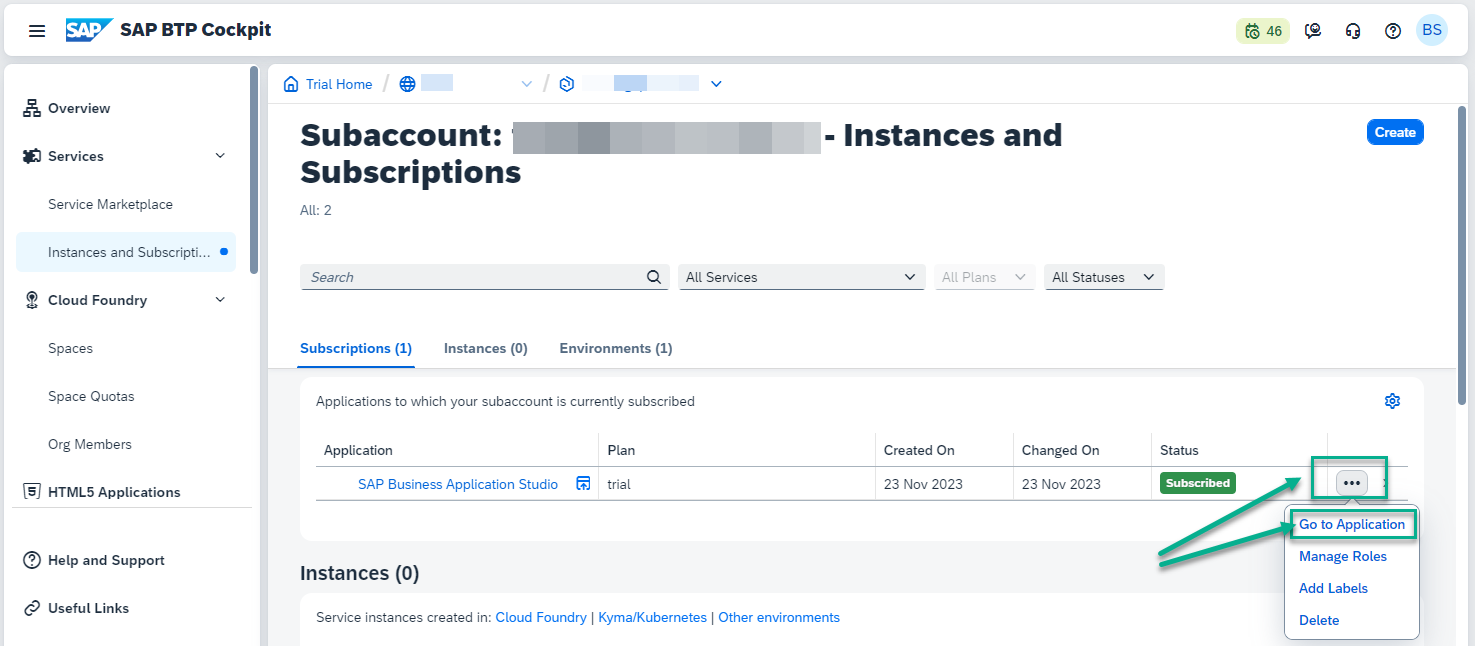
You might be asked to accept the legal terms. Check the box and click OK.
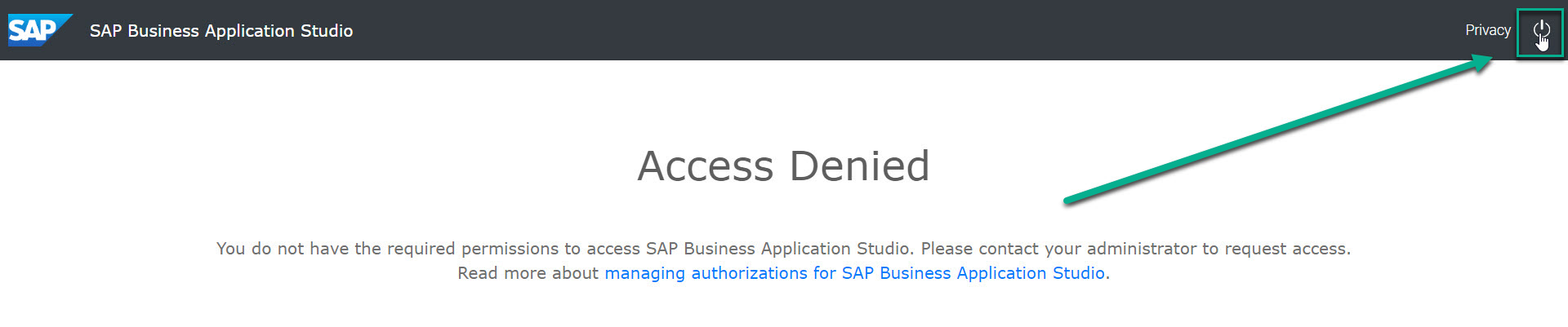
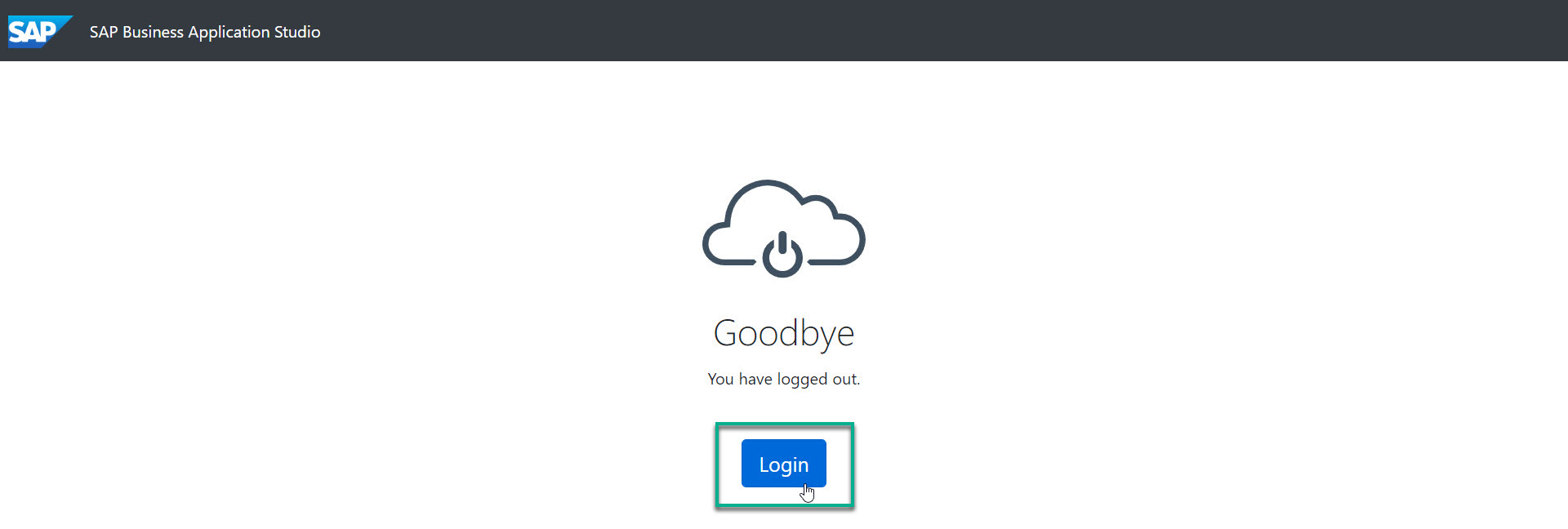
An Access Denied page may appear. Log out from SAP Business Application Studio and then log in as shown here.
Enter your credentials, and click Log On.
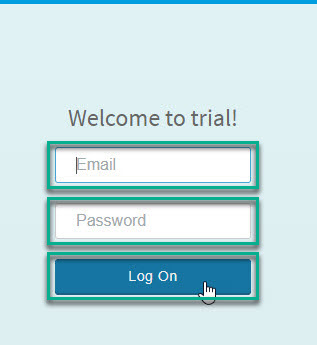
You might be asked to accept the legal terms. Check the box and click OK.
A new tab opens and the welcome page for SAP Business Application Studio opens.
Click My Dev Spaces to open the SAP Business Application Studio dev space manager.
Dev space manager for SAP Business Application Studio
Create a bookmark to this page to make it easy for you to get back to SAP Business Application Studio later.
Congratulations!
With this, you have successfully completed the setup of SAP Business Application Studio.
Summary
You now have an SAP HANA Cloud database instance provisioned and SAP Business Application Studio set up as your development environment. These two components form the foundation for everything we build in this CodeJam.
Questions for Discussion
Why is SAP HANA Cloud provisioned in a "multi-environment" context rather than directly inside Cloud Foundry?
Answer
The multi-environment approach decouples the HANA database lifecycle from any specific runtime. An SAP HANA Cloud instance provisioned at the subaccount level can be mapped to Cloud Foundry spaces, Kyma namespaces, or accessed directly via APIs — without needing to be re-provisioned for each environment. This is important for organizations that use multiple runtimes or want to share a single HANA instance across teams.Why does a free trial SAP HANA Cloud instance stop every night?
Answer
Free trial accounts are designed to provide access to SAP technology at no cost for learning and development. Automatic nightly shutdown helps SAP manage infrastructure costs for these free accounts. In productive (paid) subscriptions, your HANA Cloud instance runs continuously unless you explicitly stop it.What is the difference between SAP Business Application Studio and a local development environment (e.g. VS Code on your laptop)?
Answer
SAP Business Application Studio is a hosted, browser-based IDE running in SAP BTP. Key differences: * **Pre-configured tooling:** Dev spaces come with SAP-specific extensions, the CDS CLI (`@sap/cds-dk`), Cloud Foundry CLI, and other tools already installed — no local setup required. * **Dev spaces:** Each dev space is a containerized environment tailored to a specific scenario (Full Stack Cloud Application, SAP Fiori, etc.), keeping tools scoped to what you need. * **Network access:** BAS runs inside the SAP BTP network, which can simplify connectivity to SAP services. * **Trade-offs:** Because it runs in a browser, it depends on a stable internet connection. Local VS Code offers more flexibility and offline access. SAP also provides a [CDS language extension for VS Code](https://marketplace.visualstudio.com/items?itemName=SAPSE.vscode-cds) if you prefer working locally.What is an HDI container, and how does it relate to SAP HANA Cloud?
Answer
HDI stands for **HANA Deployment Infrastructure**. An HDI container is an isolated schema within an SAP HANA database that is managed by the HDI service. Each container has its own set of database objects (tables, views, procedures, etc.) and its own deployment history. * HDI containers are created and managed as Cloud Foundry service instances (using the `hana` service with the `hdi-shared` plan), even though the HANA Cloud instance itself may not be running inside Cloud Foundry. * CAP projects use HDI containers to deploy all database artifacts. The `@sap/hdi-deploy` tool handles the actual deployment into the container. * This isolation means multiple CAP applications can share one HANA Cloud instance without interfering with each other's schemas.
Further Study
- Deploy SAP HANA Cloud (Tutorial)
- Tools to Manage and Access SAP HANA Cloud
- Subscribing to the SAP HANA Cloud Administration Tools
- SAP HANA Cloud Multi-Environment Overview
- SAP Business Application Studio Documentation
Next
Continue to 👉 Exercise 2 - Create an SAP Cloud Application Programming Model Project for SAP HANA Cloud